 Watching
How the Watching app turns screen time into learning time
Set up takes a few minutes. After that, your child earns extra play time by completing a short learning check whenever a session ends.
Set up Watching in 3 steps
- 1
Install Watching on your phone
Create your family on your own Android phone or iPhone. Parents sign in; children never need an account.
- 2
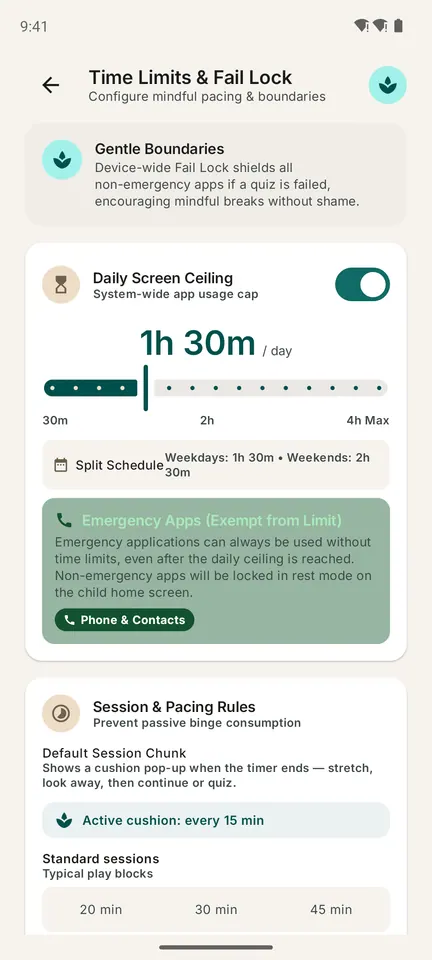
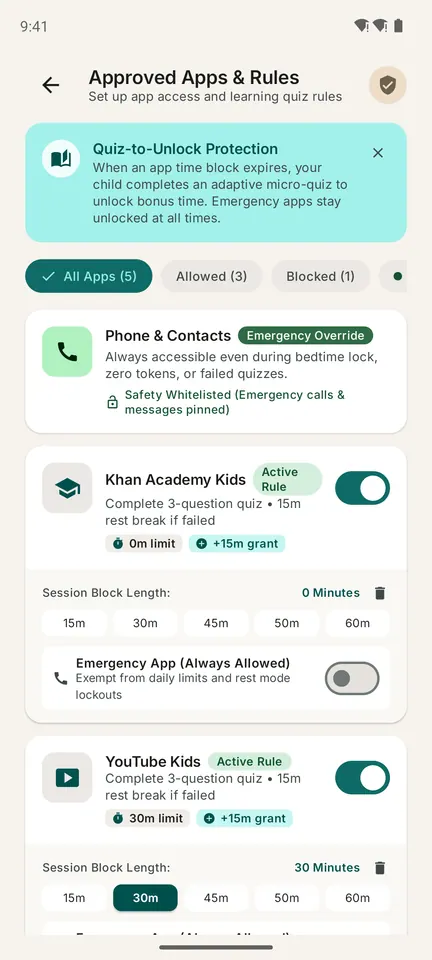
Add your child and set the rules
Choose their age group, daily limit, approved apps and how long each play session lasts.
- 3
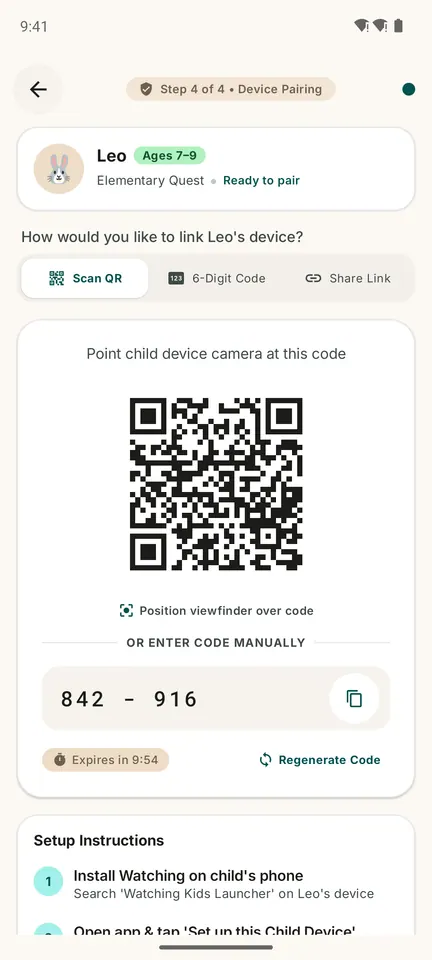
Pair your child’s phone
Install Watching on your child’s phone and scan the QR code, or type the short code.


What happens when play time ends
Play time counts while your child uses the apps you have limited. When a session ends, Watching shows a friendly time’s up message and starts a short learning check.
A learning check has 5 short steps
- 2 quick multiple-choice questions matched to your child’s age
- 1 short learning video
- 2 hands-on activities, such as a memory game or a jigsaw puzzle
If there is no video, or you switch activities off, Watching fills the spot with another question so the check always has five steps. Each activity has a gentle timer of about 2 to 3 minutes.
Pass, and play time unlocks
Your child earns the bonus time you chose, plus stickers and levels. Miss it, and a short lesson explains the idea, followed by a calm rest period if you have set one. Calls to Mom and Dad always stay available.

You stay in control
From your phone you can see time left for each child, pause a device, give bonus time and review reports for today, 7 or 30 days. A Parent PIN protects the settings on your child’s phone.
On Android, Watching uses permissions you approve, such as Usage Access and the Home screen setting, to show only approved apps. On iPhone, it uses Apple’s Screen Time tools.